
Choosing a Framework
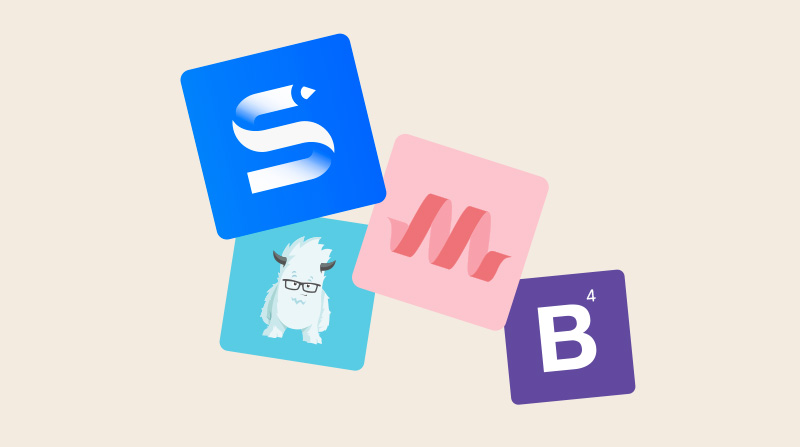
When you create a new project in Site Designer, you choose one of four starting points: the Frameworkless option or one of three CSS frameworks — Foundation, Bootstrap, or Materialize. This choice shapes the grid system, the pre-built components, the class names you can use, and even which responsive strategy is available to you.
The four starting options
Frameworkless (recommended for most new users)
A frameworkless project starts with only your own CSS — no framework classes, no imposed grid system, no pre-built components. You have full control from the very first element, and it’s the option we recommend to anyone new to the program.
Two things make it the easiest place to start:
- It’s the only option that supports desktop-down design. The three frameworks lock you into a mobile-first workflow; frameworkless lets you design from the full desktop canvas first and then adapt downward. Designing across the whole canvas you actually see is far more intuitive for most people. See mobile-first vs. desktop-down for the full explanation.
- You name your own classes — with zero conflicts. Because there’s no framework stylesheet, you can call your classes whatever makes sense to you, and nothing will ever collide with a reserved framework class name.
Choose Frameworkless if you:
- Are new to Site Designer and don’t already know a specific framework
- Want to design desktop-down, using the full canvas
- Prefer naming your own classes without conflicts
- Want the lightest possible output (no framework stylesheet loaded)
- Are building a custom, highly specific design
Foundation 6
Foundation by ZURB is a mobile-first front-end framework based on a flexible 12-column grid. Among the three frameworks it has the most complete component library.
Choose Foundation if you:
- Already know Foundation, or specifically want its component library
- Want a robust 12-column responsive grid
- Need a large library of pre-built UI components (navbars, cards, modals, sliders)
- Prefer semantic HTML class names (
.callout,.button,.card)
Bootstrap 4
Bootstrap by Twitter is the world’s most widely used CSS framework. Site Designer supports Bootstrap 4 with its 12-column grid, extensive JavaScript components, and familiar utility classes.
Choose Bootstrap if you:
- Already know Bootstrap from other projects
- Want the broadest ecosystem of third-party themes and components
- Need
.d-flex,.container,.row,.col-md-6style utilities - Are building something where Bootstrap documentation applies directly
Materialize
Materialize is a CSS framework implementing Google’s Material Design language — cards, ripple effects, floating action buttons, and a distinctive visual style.
Choose Materialize if you:
- Already know Materialize, or specifically want a Google Material Design aesthetic
- Are building a productivity app, dashboard, or admin interface
- Want the wave/ripple animation effects
Framework comparison
| Frameworkless | Foundation | Bootstrap | Materialize | |
|---|---|---|---|---|
| Responsive strategy | Desktop-down or mobile-first | Mobile-first only | Mobile-first only | Mobile-first only |
| Class names | Yours, no conflicts | Reserved framework classes | Reserved framework classes | Reserved framework classes |
| Grid | None (you choose) | 12-col flex | 12-col flex | 12-col flex |
| Components | None | Extensive | Extensive | Moderate |
| Design style | Custom | Neutral | Neutral | Material Design |
| JS required | None | Optional | Optional (some) | Some |
| File size | ~0 KB | ~110 KB | ~130 KB | ~100 KB |
| Recommended for | New users; custom designs | Designers who know Foundation | Teams who know Bootstrap | Material Design apps |
Choosing from the template library
After selecting a framework, you can choose a pre-built page template from the Template Manager. Templates give you a fully styled starting point — a homepage, landing page, blog layout, or portfolio — that you then customize.
-
Open the Template Manager
Click the Templates icon in the toolbar.
-
Filter by framework
Use the framework filter to show only templates compatible with your chosen framework.
-
Preview and apply
Click a template to preview it. Click Apply to use it as your starting page. You can apply additional templates to other pages in your project.