
Settings
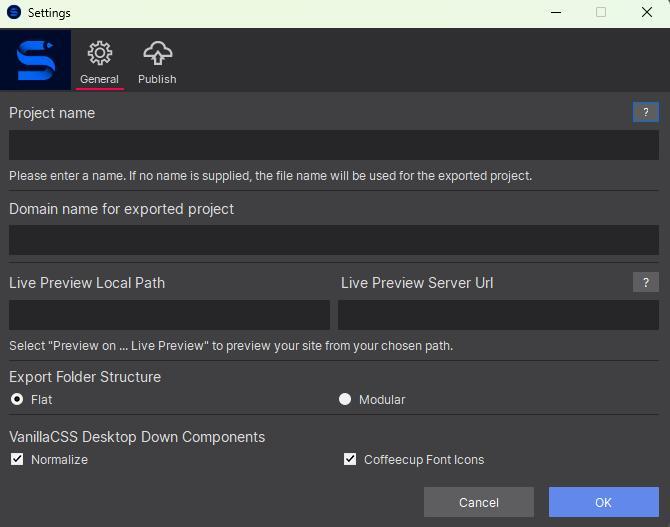
The Settings toolbar icon is where you configure the project name and export folder structure, and where you connect to a publishing destination.
General Settings
General Settings covers the project name and export folder structure. It’s also where you configure Live Preview, through two fields: Live Preview Local Path (the folder your local web server serves) and Live Preview Server Url (the http:// address the browser opens).
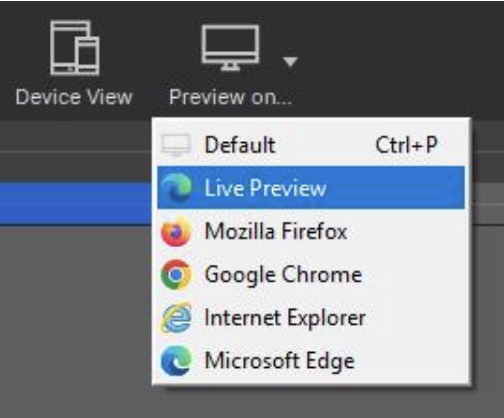
Once both are filled in, choose Preview on… → Live Preview to open the project from that server.
Publish and Export
Site Designer gives you two ways to put a site online:
Publish to S-Drive. The app uploads all files to your CoffeeCup account automatically. Click the Settings toolbar button, switch to the Publish section, and enter your CoffeeCup account information — no manual upload required. See publishing to S-Drive for the full walkthrough.
Export. Generates a folder containing every file your website needs, so you’re free to upload it to your own hosting with any FTP utility. Click the Export toolbar icon, or use File → Export, to begin.