
Page Manager reference
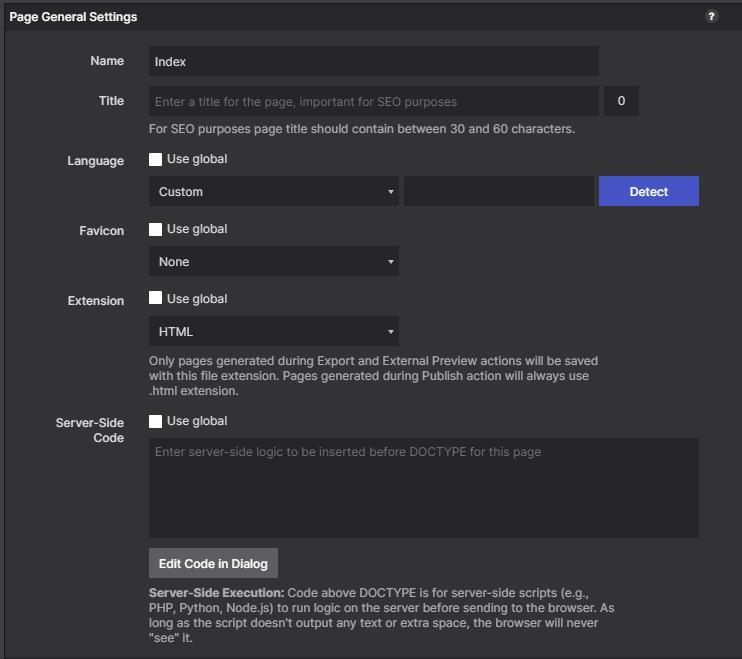
The Page Manager is the central hub for your site’s page structure. Every page you create, duplicate, reorder, or delete is managed here. Think of it as the file browser for your project.
Opening the Page Manager
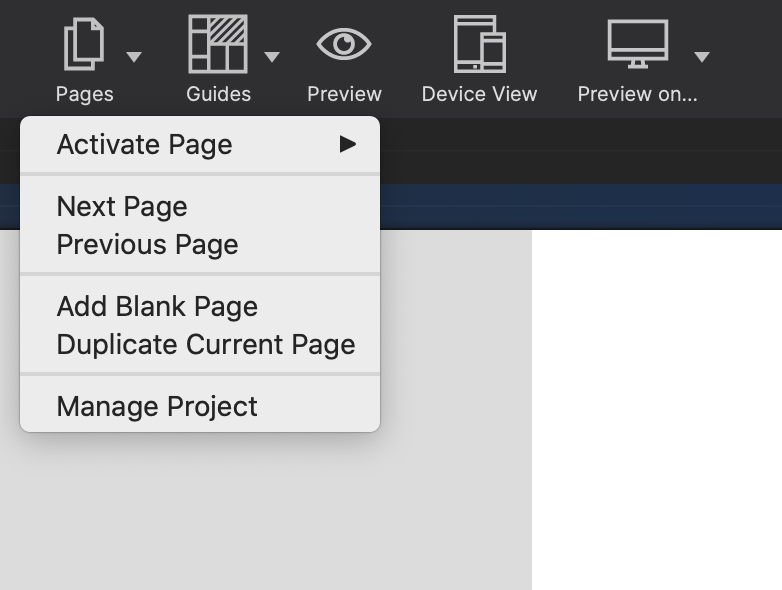
Click the leftmost icon in the toolbar — it looks like a stack of pages. The Page Manager panel opens on the left side of the workspace. You can also press Ctrl+Shift+I (Windows), or open it from Actions → Page Manager.
The page list
A list of each page in the project runs down the left side. Clicking a page name opens its properties for editing.
To rearrange the order, click the arrow to the right of the page name and drag and drop it where you want it.
At the bottom of the page tree there are icons to Add A New Page, Duplicate, or Delete the currently selected page.
Page types
HTML — Standard static HTML pages. The default type for new pages.
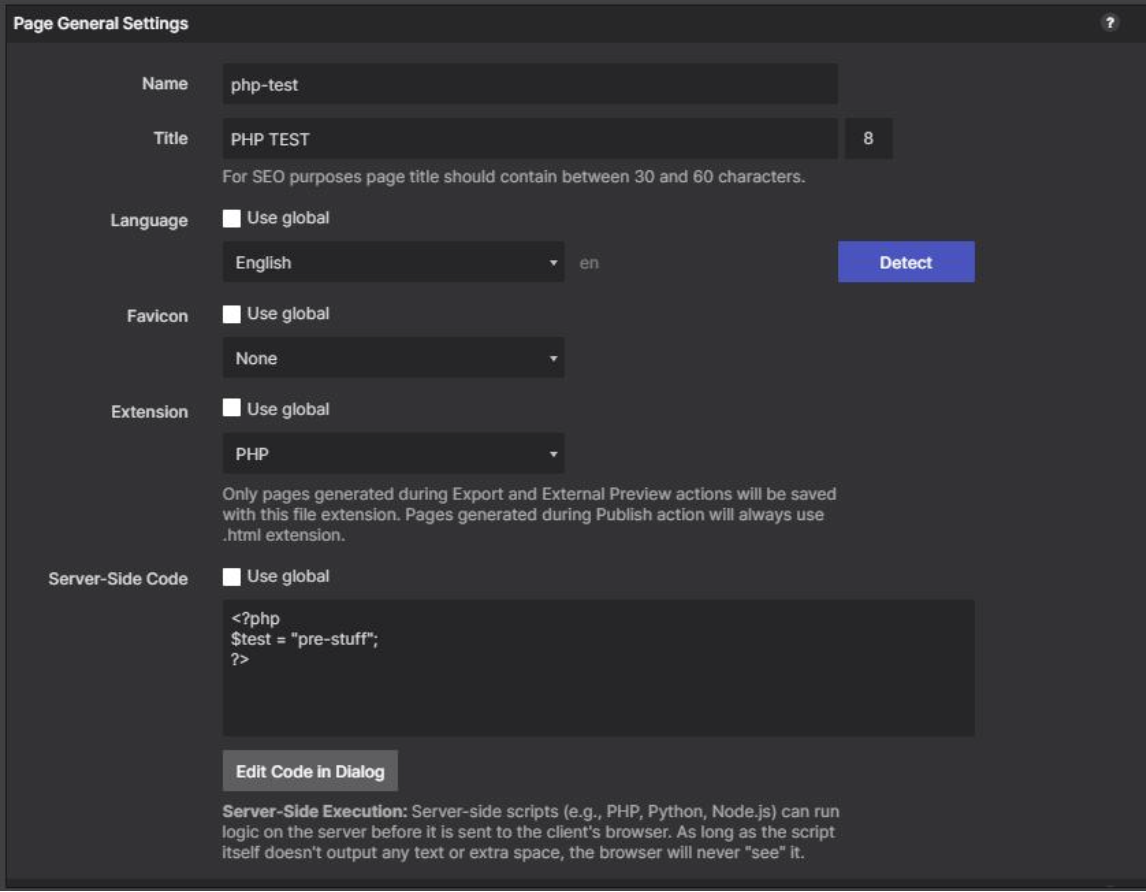
PHP — Pages that use PHP includes or server-side logic. The file extension changes to .php on export. All design features work the same way.
The homepage indicator
Page names become URLs
The Page Name is used in the web link — https://www.example.com/page-name.html. It’s also what you type when creating links between pages.
Bulk operations
Hold Shift and click to select a range of pages. Hold Ctrl (Windows) or Cmd (macOS) and click to select non-contiguous pages. With multiple pages selected, you can:
- Delete all selected pages at once (right-click → Delete).
- Apply page property changes in batch (right-click → Properties — only shared fields are shown).
Keyboard shortcuts in the Page Manager
| Action | Shortcut |
|---|---|
| New page | N (with panel focused) |
| Duplicate selected page | Ctrl+D / Cmd+D |
| Delete selected page | Delete or Backspace |
| Open page properties | Enter or Return |
| Move page up | Alt+↑ |
| Move page down | Alt+↓ |