
Apply Styles section
As explained above, style definitions are related to selectors and the top part of the style section is used to manage exactly that.
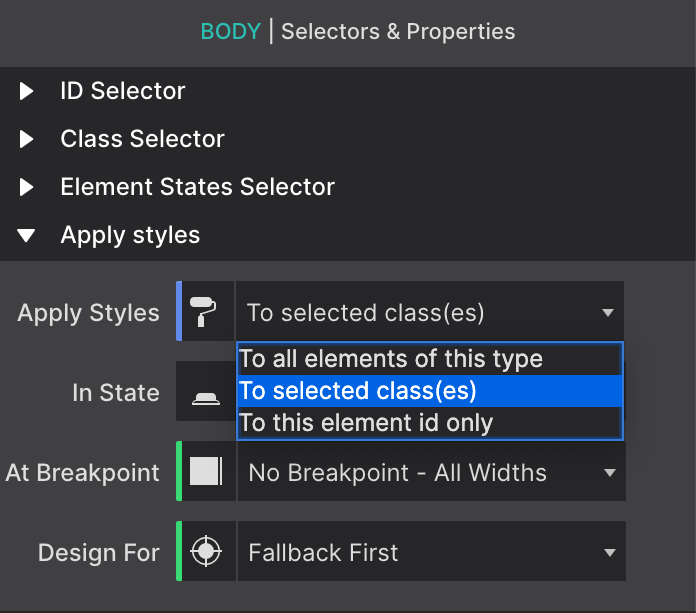
The Apply Styles dropdown is used to select the type of selector the style rules will be associated with. The choices are between Element Type, Class and ID.
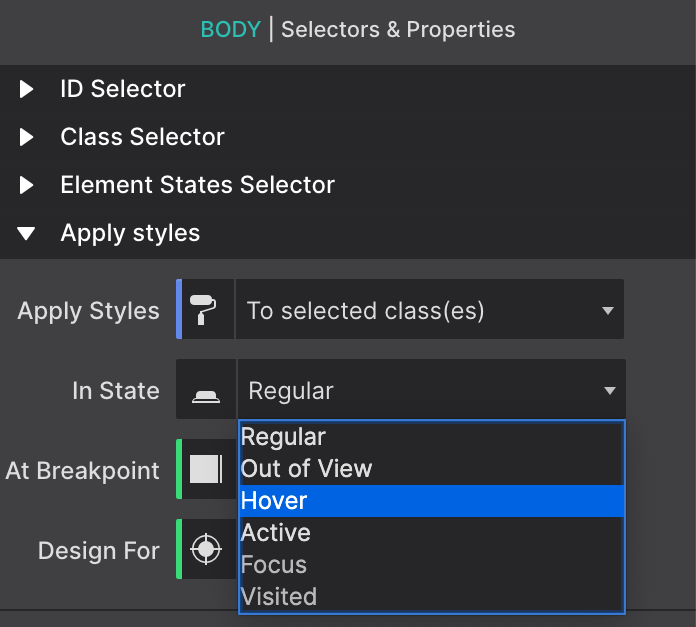
The In State dropdown can be used to specify a special state of the element targeted by a selector. For example :hover will apply a style when the user hovers over the element associated with the selector. You can also set Out of View effects using the State dropdown. You can learn more about Out of View in Using the State dropdown.
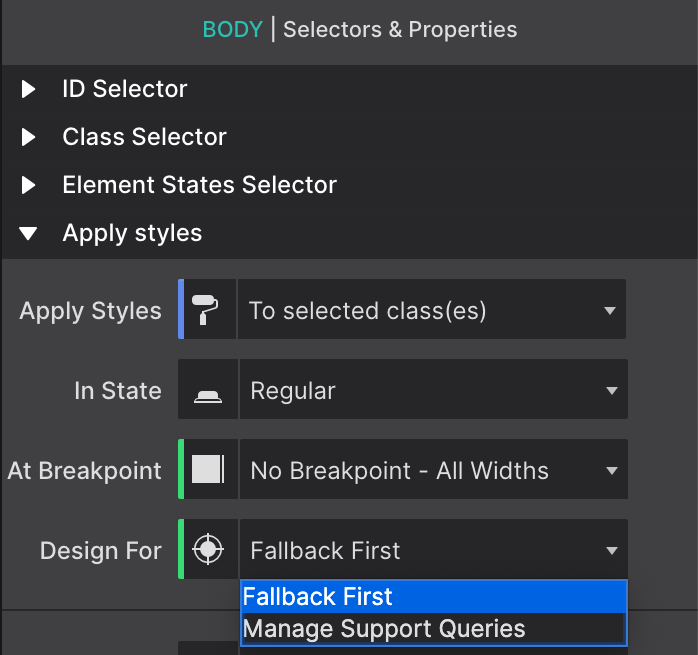
The Design For… control allows you to pick which Feature Query, such as Fallback First or Display Grid, that you want the styles to be associated with.
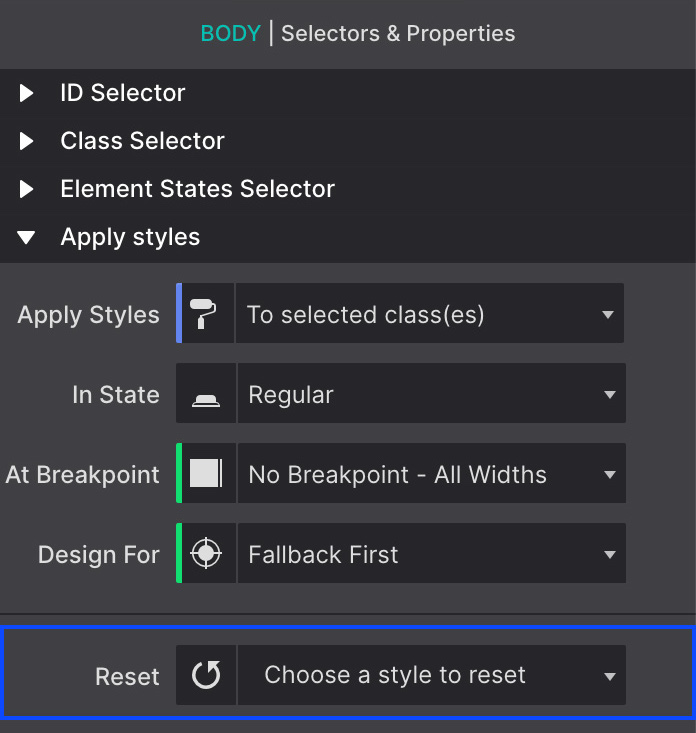
The Reset function helps to keep the project code lean and clean. If you have tried out styles or placement options but decide to not use them, you’ll want to remove the choices from the exported CSS stylesheet. This will improve your workflow and the overall performance of your website.
The Reset drop down will provide you with an overview of the styles that have been applied to the current selector. Use the search box at the top to locate the style you want to remove or scroll down the list. Styles can be removed by clicking on them.
The Reset control will give you the option to reset styles individually at breakpoints or at all sizes. Read more about this topic or watch the video tutorial below.