Add a responsive Google Map
Browse tutorials- What you'll build
- A Google Map embedded on a page that scales correctly at every screen width, instead of Google's fixed-size iframe.
- Time to complete
- 10–15 min estimated
- Prerequisites
-
- A Google Maps embed code for the location you want to show.
A map on your contact page tells customers where to find you. The catch: Google hands you a plain <iframe> with a fixed width and height, which is awkward on a phone.
Site Designer solves this with a dedicated Map element: paste the embed code and it is made responsive for you. If your build predates that element, the manual route further down gets you the same result.
Add the map with the Map element
-
Add the Map element
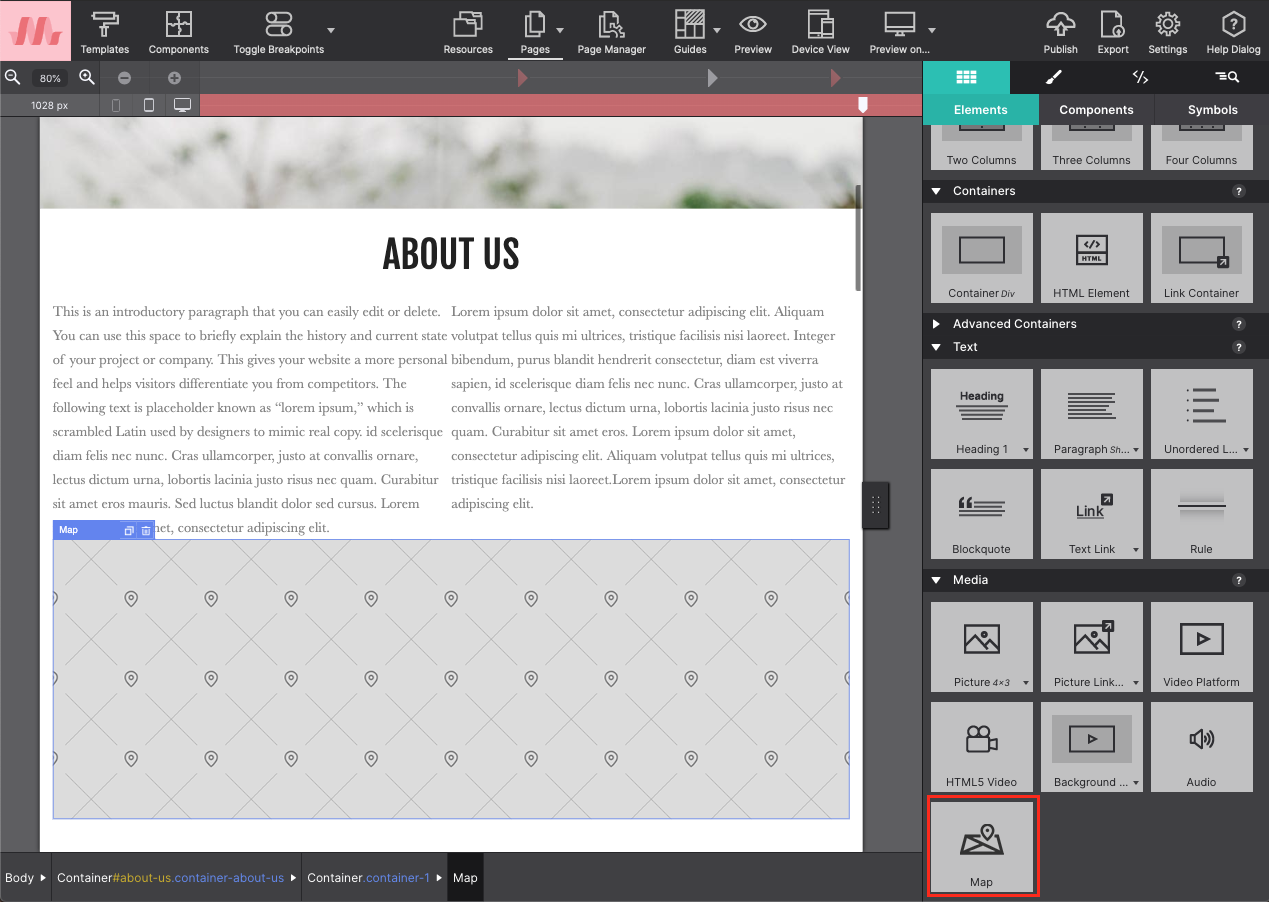
Drag and drop, or click, the Map element from the Content pane to add it to the canvas.
-
Copy the embed code from Google Maps
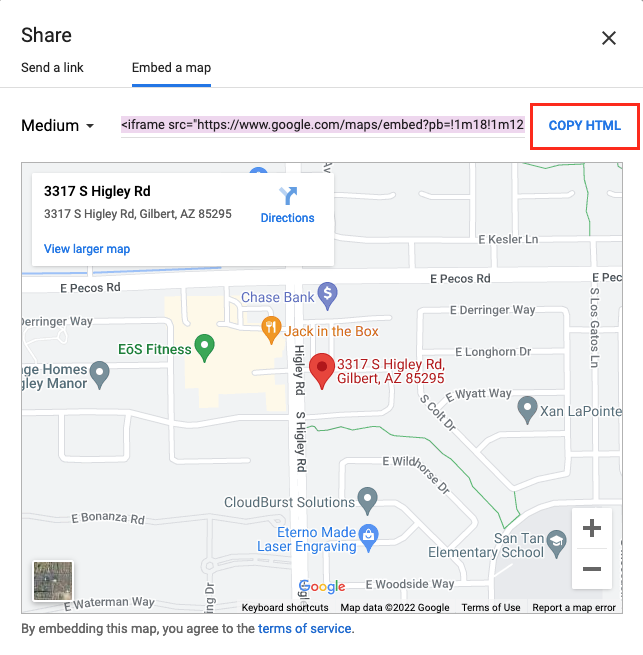
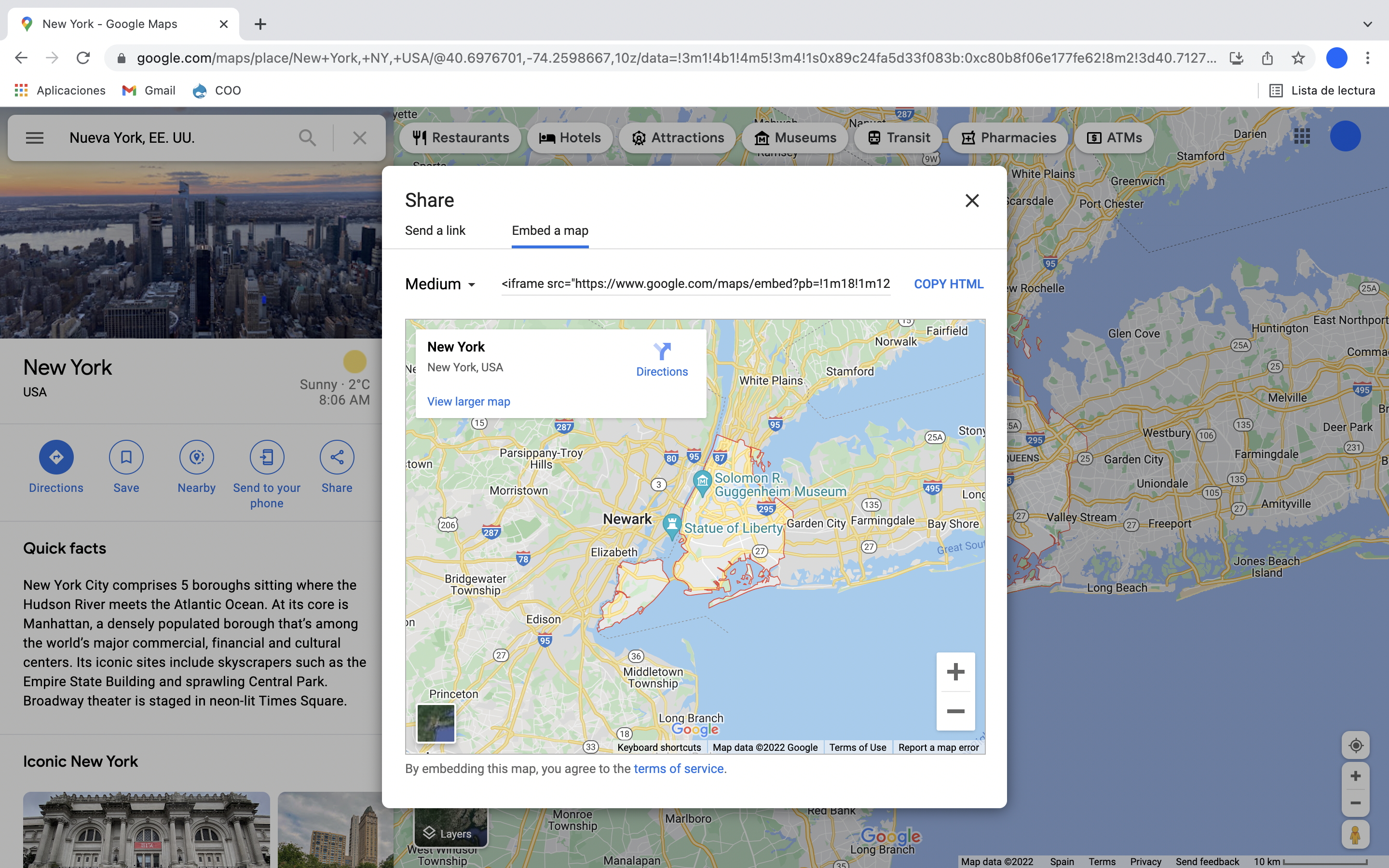
Open Google Maps and enter your location. Click Share, choose Embed a map, then click Copy HTML.
-
Paste it into the Map SRC box
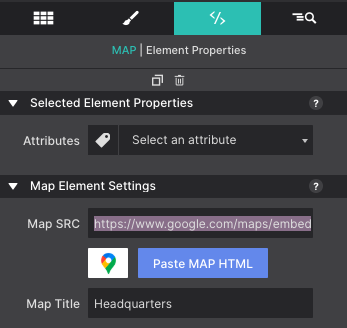
Back in Site Designer, select the map element and go to the Element pane. Paste the copied HTML into the Map SRC box.
-
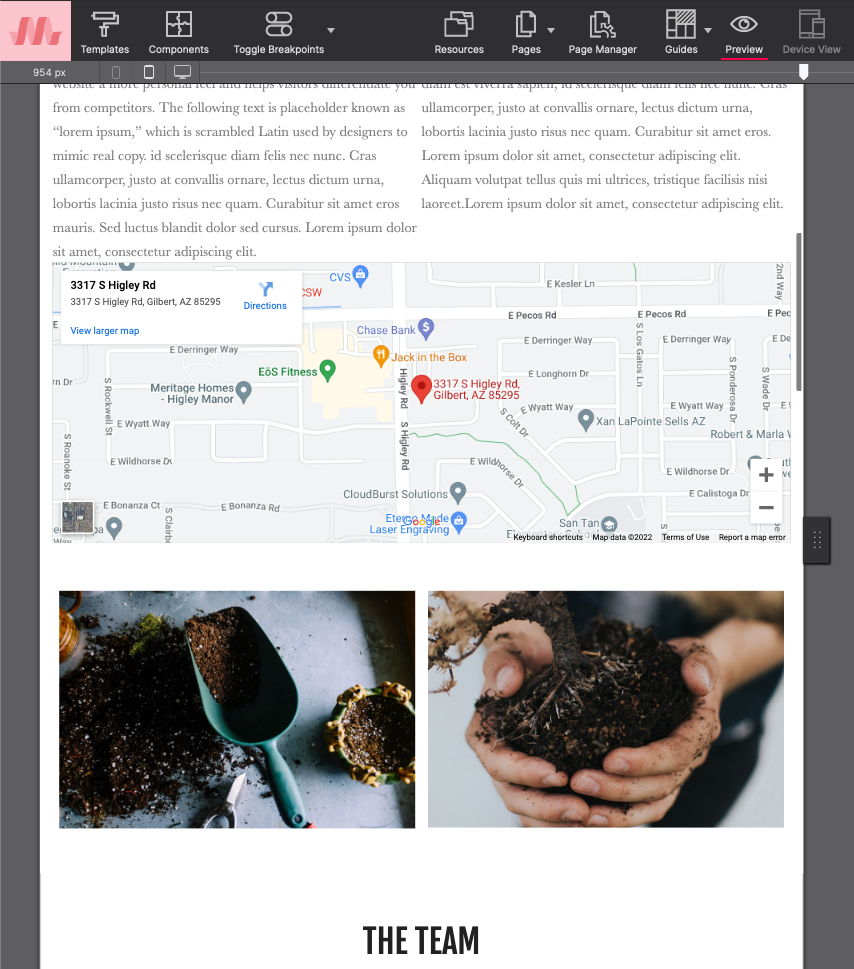
Preview and size it
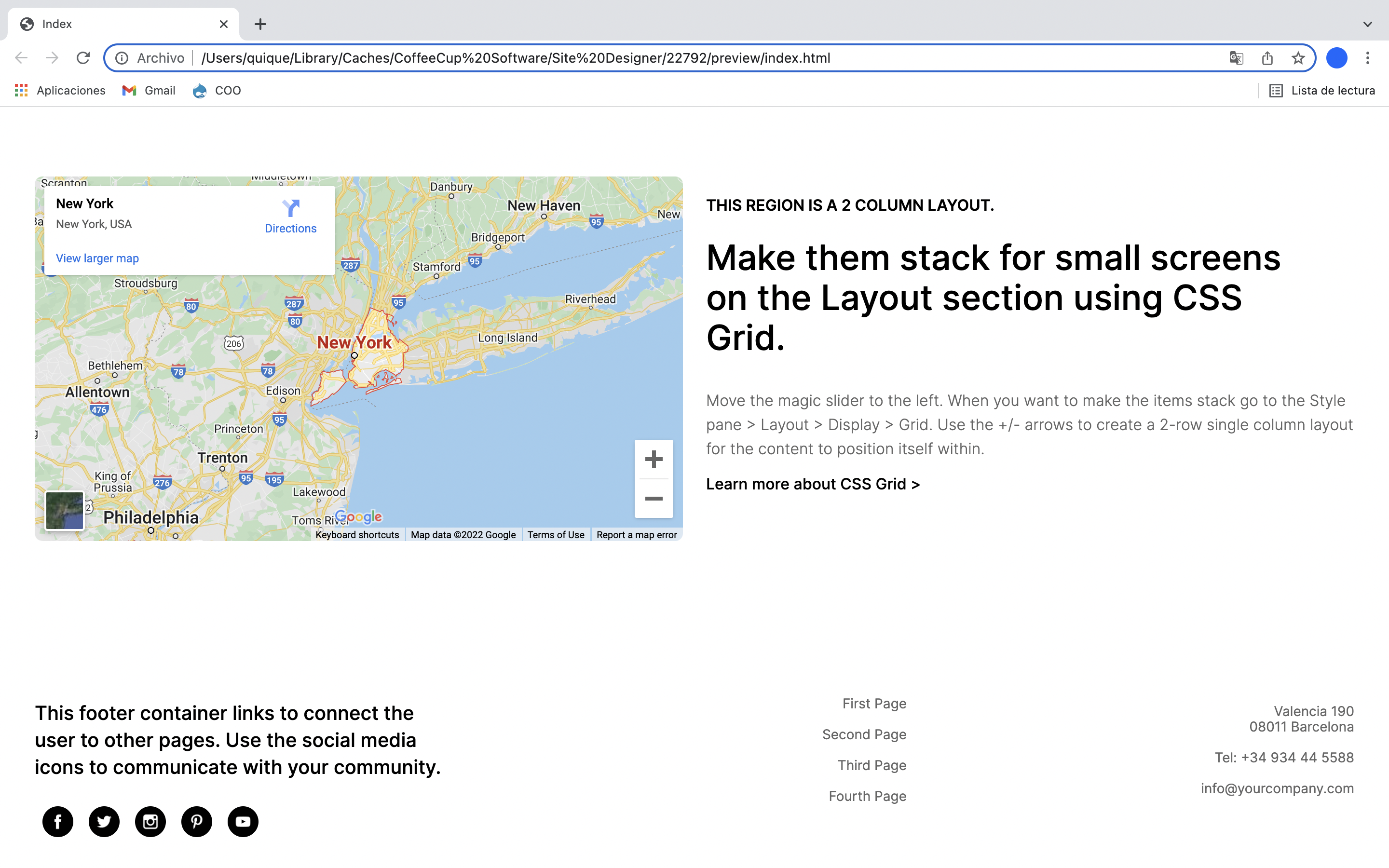
Click Preview or Preview On to see the map live. Adjust the size of the Map element if you need to, from Styles pane → Layout → Dimensions.
The manual route, for builds without the Map element
The Map element arrived in build 3519, in July 2022. If you are on an older build, this route wraps Google’s fixed-size iframe in responsive markup by hand — it produces the same result, with a couple of extra steps.
-
Copy the embed code from Google Maps
Same as above: Share → Embed a map → Copy HTML.
-
Make it responsive with Embed Responsively
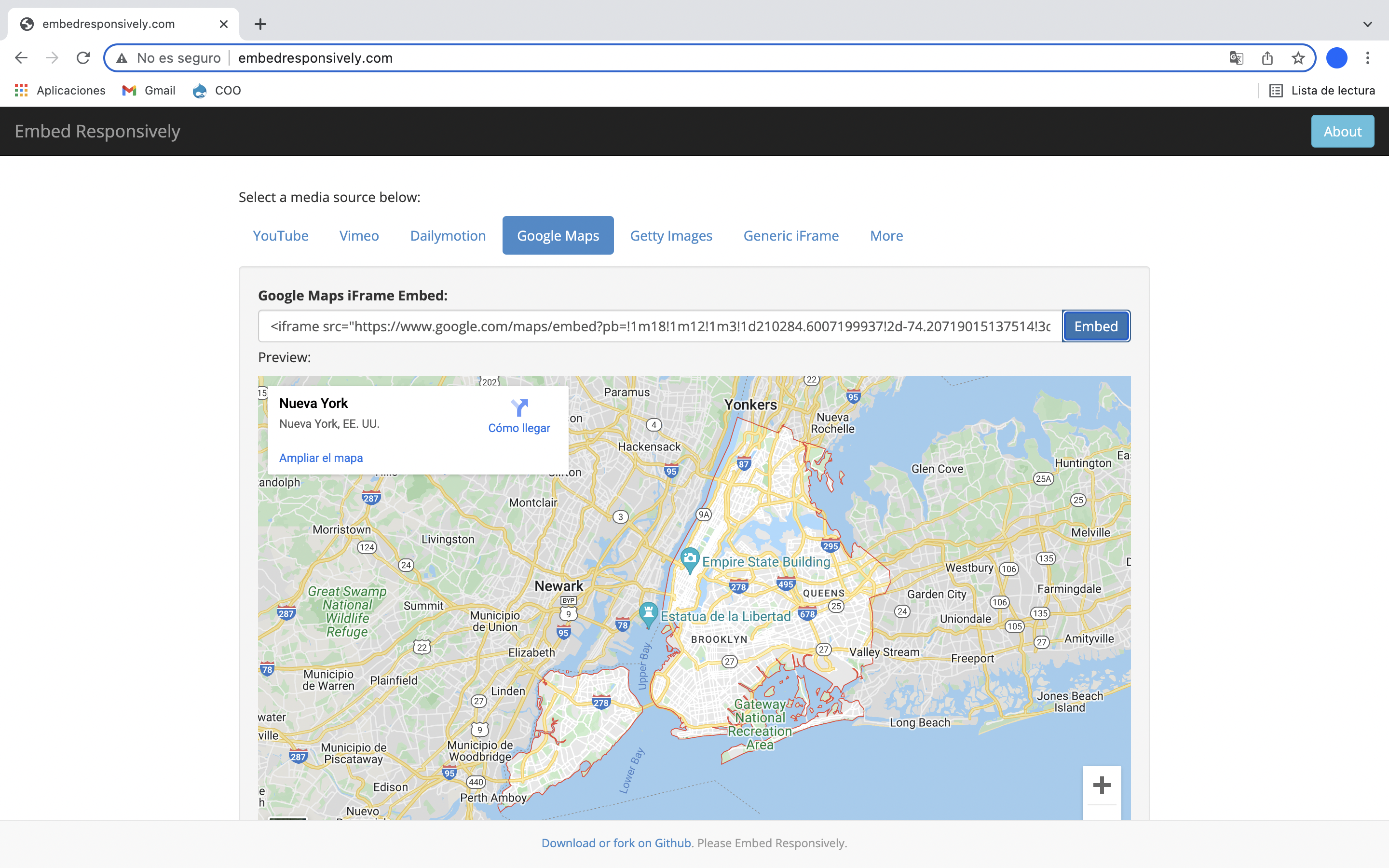
Open Embed Responsively, pick Google Maps as the media source, paste the code you copied, and click Embed.
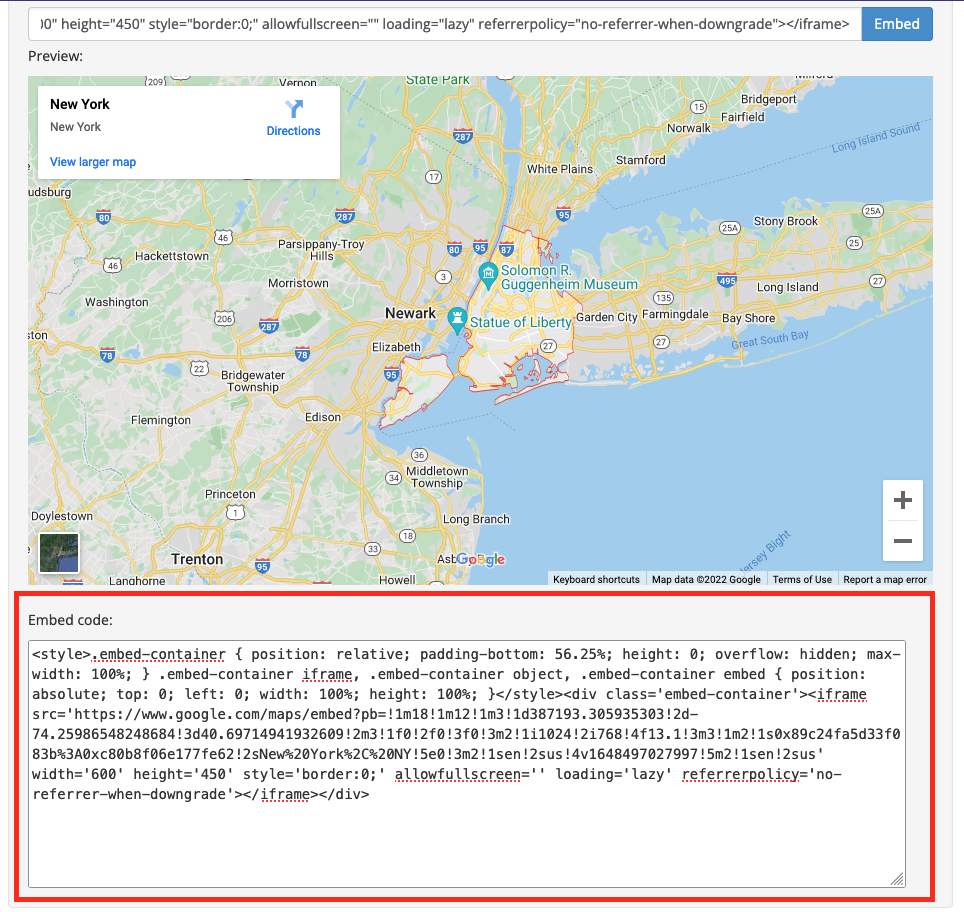
An embed code appears below the map. Copy that — this is what goes into Site Designer.
-
Paste it into an HTML element
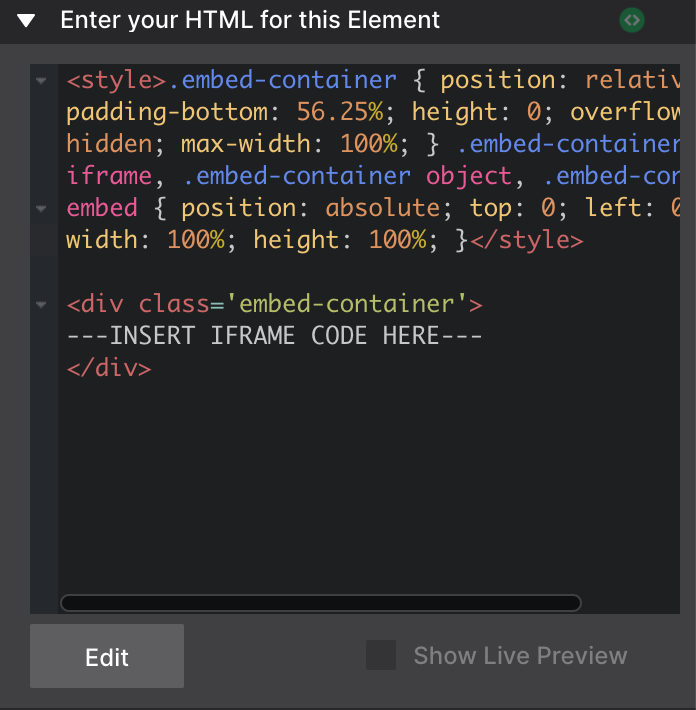
Add an HTML Element to the canvas where the map should appear, then go to Element pane → Enter your HTML for this element and paste the code in.
-
Size it on the canvas
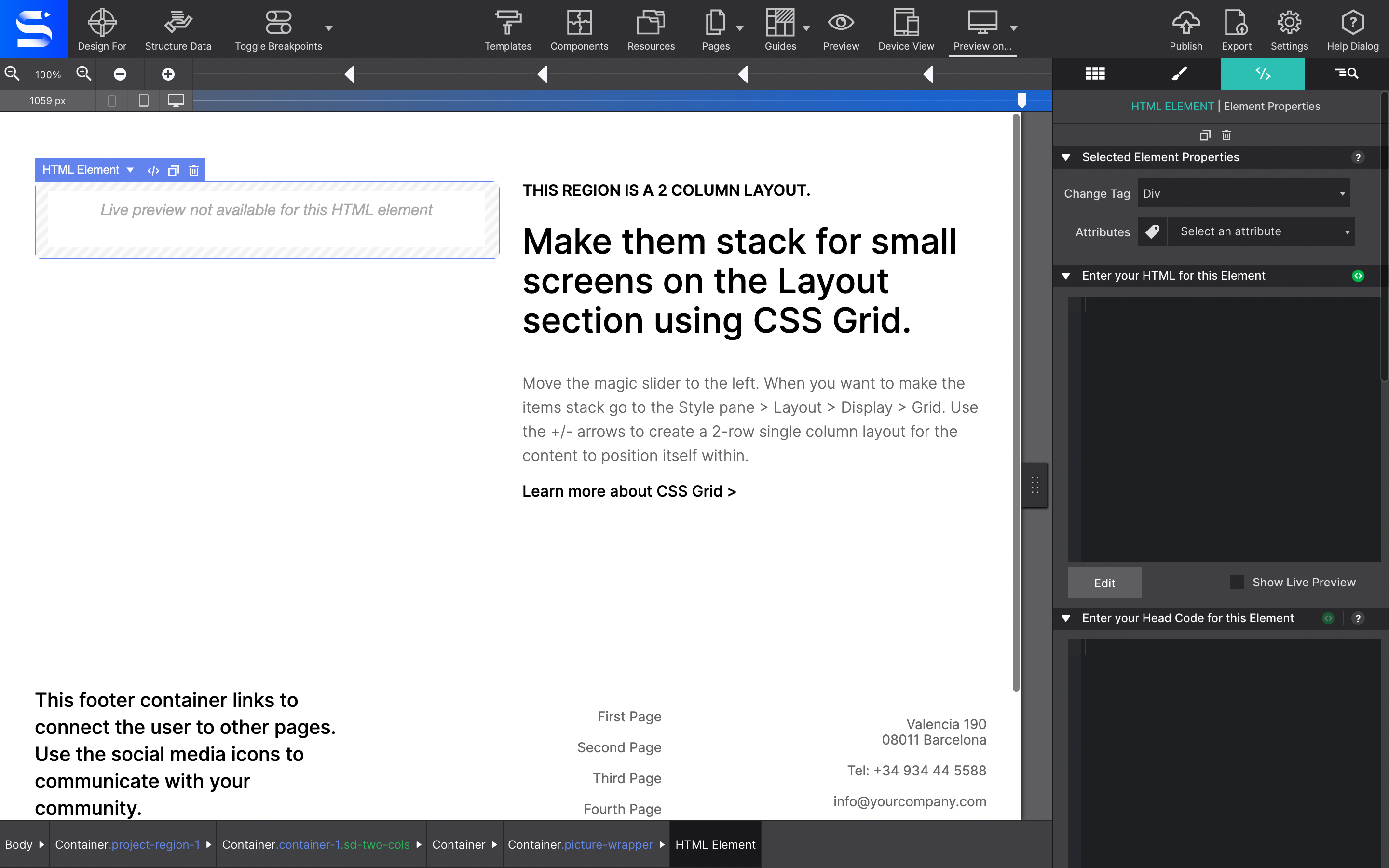
Once the code is in, the element on the canvas reads “Live preview not available for this element.” That’s expected. Set its width and height from Styles pane → Layout → Dimensions.
-
Preview or publish to see it
The map only renders outside the canvas, so Preview or Publish the page to see the result.