
Working with Links
With the exception of inline links (configured with the Text Editor), every link element — Text Link, Picture Link, Container Link, and Button Link — is configured in the same place: the Element pane → Selected Element Properties → HREF section.
Links can direct visitors to another page in your project, a third-party web address, another location on the current page, or a document.
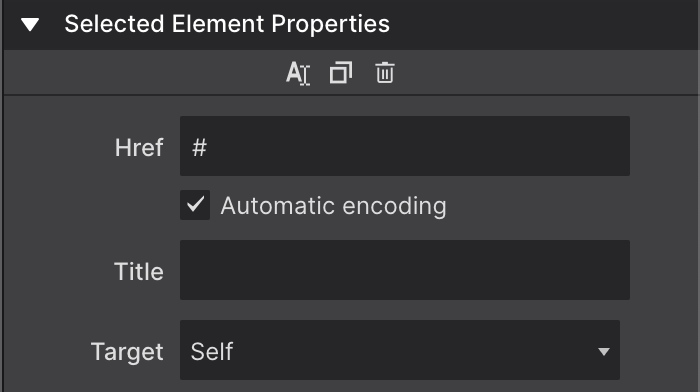
The Href control
Use the Href control to set the link destination. You can enter an external address (https://www.example.com) or link to an internal page in your project.
If you’re linking to another page in the project, remove the leading # and start typing the page name — Site Designer auto-populates a list of existing pages to choose from. To link to a region on the current page, format the value as #id-name, matching the target element’s ID.
The Title control
The Title control adds a tooltip that appears on hover and is read by screen readers — useful for giving extra context about where a link leads.
The Target control
The Target control decides where the linked document opens:
| Value | Behavior |
|---|---|
| Self (default) | Opens in the same tab/window the link was clicked in |
| Blank | Opens in a new tab or window |
| Parent | Opens in the parent frame (relevant only when using iframes) |
| Top | Opens in the full body of the window, breaking out of any frames |
Parent and Top are rarely needed outside of iframe-heavy projects — Self and Blank cover the vast majority of links.
Inline links
Inline links are links injected directly inside a Paragraph or Text element, rather than being their own element. To add one:
- Double-click the text element to enter inline edit mode.
- Highlight the word or phrase you want to link.
- Click the + icon at the top of the Text Edit toolbar to open the link controls.