
Symbols — one global component, shared by every page

A Symbol is a global component — a single component shared by every page that uses it. This article explains what that sharing means in practice, how to create and edit Symbols, and when to use one instead of a regular component.
What a Symbol is
A Symbol is a component. You insert it, style it, nest elements inside it, and edit it on the canvas exactly like any other component in Site Designer. As an element, there is nothing new to learn.
What makes it a Symbol is where it lives. A regular component is copied into each page. A Symbol is stored once in the project and then referenced by each page that uses it. The navigation bar on your Home, About, and Contact pages isn’t three navigation bars that happen to look alike — it is the same navigation bar, appearing in three places.
That single stored version is the definition. Each place it appears on a page is an instance.
One definition, many instances
Because every instance points back to the same definition, editing is global by nature:
- You edit any instance, on any page — it doesn’t matter which one you pick.
- Site Designer applies the change to the definition.
- Every instance, on every page, reflects the change immediately — including pages you never opened.
This is the problem Symbols exist to solve. On a ten-page site, adding one link to a regular navigation bar means repeating the same edit ten times, and hoping you didn’t miss a page or make a typo on page seven. With a Symbol, you add the link once and all ten pages are already correct.
Symbols vs. regular components
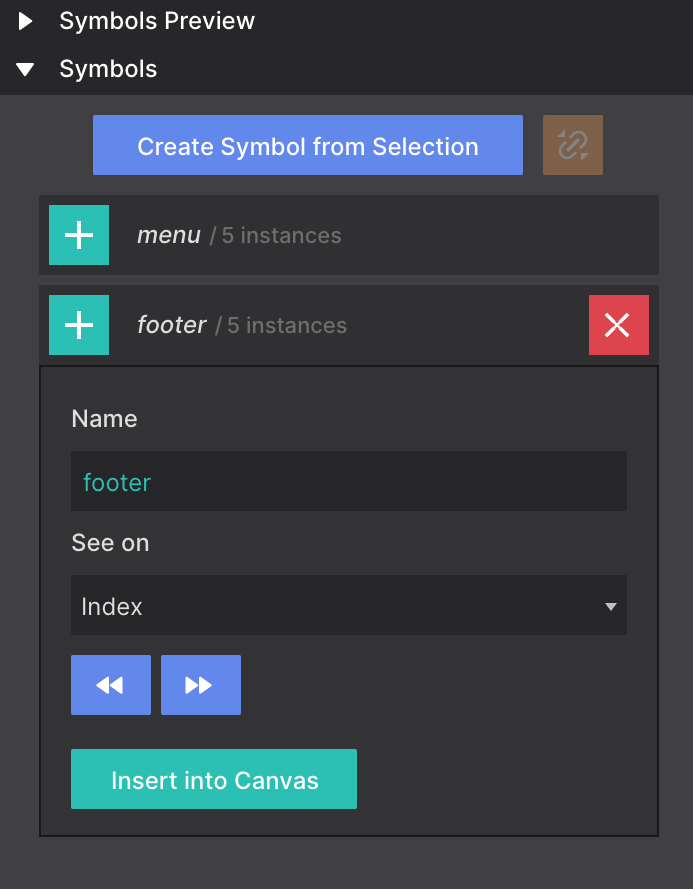
Both are components, built the same way. The difference appears the moment you place a second one on the canvas:
| Regular component | Symbol (global component) | |
|---|---|---|
| What inserting creates | An independent copy | A linked instance of one shared definition |
| Where the content lives | Duplicated into each page | Stored once in the project |
| Editing one instance | Affects only that instance | Updates the definition, so all instances change |
| Instances over time | Drift apart as you edit each page | Stay identical for the life of the project |
| Updating ten pages | Ten manual edits | One edit, anywhere |
| Best for | Sections that start alike but evolve separately | Content that must be the same everywhere |
Nothing about designing a Symbol is special: it’s still HTML elements, still styled with classes, still nested however you like. Global sharing is the only behavior that sets it apart.
When to use a Symbol
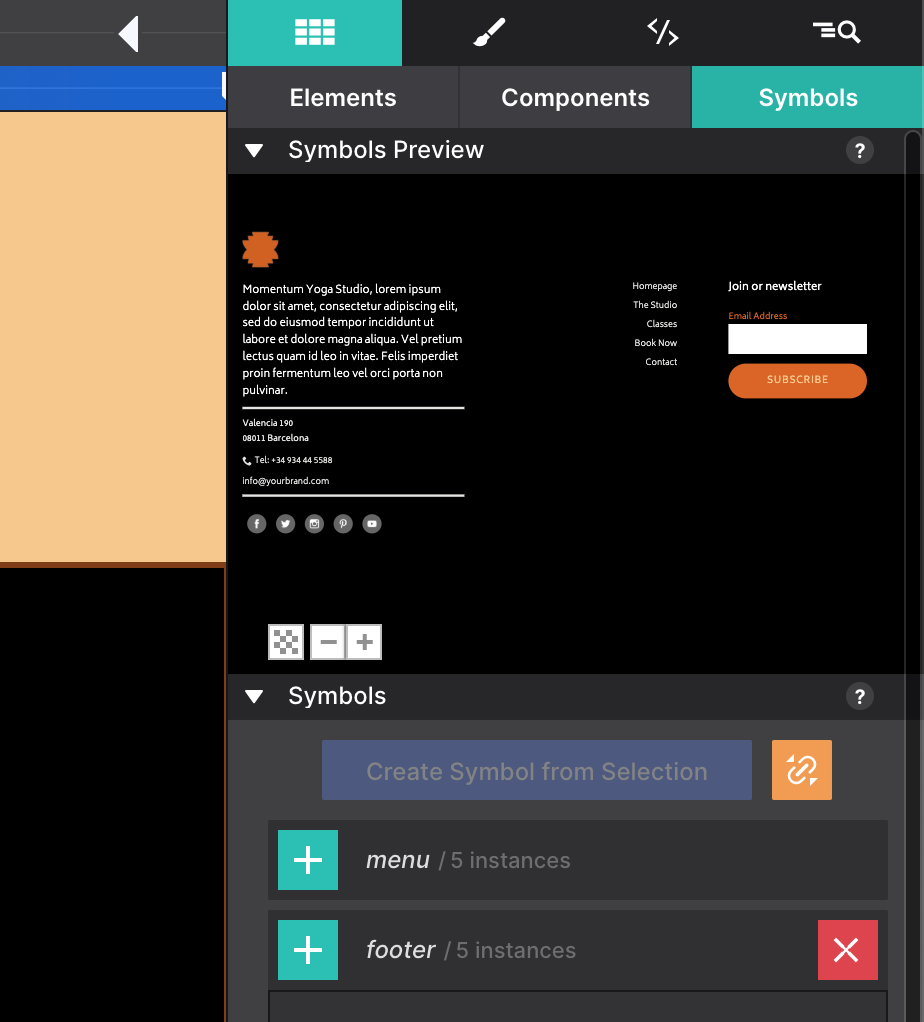
Reach for a Symbol whenever an element must be identical on multiple pages and change on all of them at once:
- Navigation bar — links, logo, and layout stay consistent across every page.
- Footer — copyright year, social links, address.
- Cookie consent banner — same text, same styling, on every page.
- Promotional banners — a site-wide sale banner you can switch on or off without touching each page.
If a section only starts the same on each page and you expect it to diverge — a hero with different copy per page, for example — use a regular component instead.
Creating a Symbol
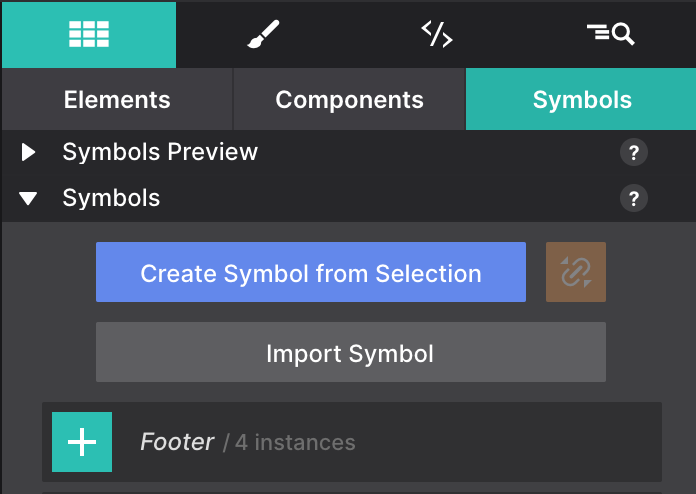
- Design the element on the canvas, or select an existing one you want to convert.
- Select the outermost wrapper of the section, so the whole section becomes the Symbol.
- Right-click and choose Convert to Symbol.
- Give the Symbol a clear name that reads as a global thing — for example “Site Navigation” or “Global Footer”.
- Click Save.
From this point the element on the canvas is an instance of a definition now stored in your project. Drop that Symbol onto other pages and you are placing more instances of the same definition — never new copies.
The Symbol badge
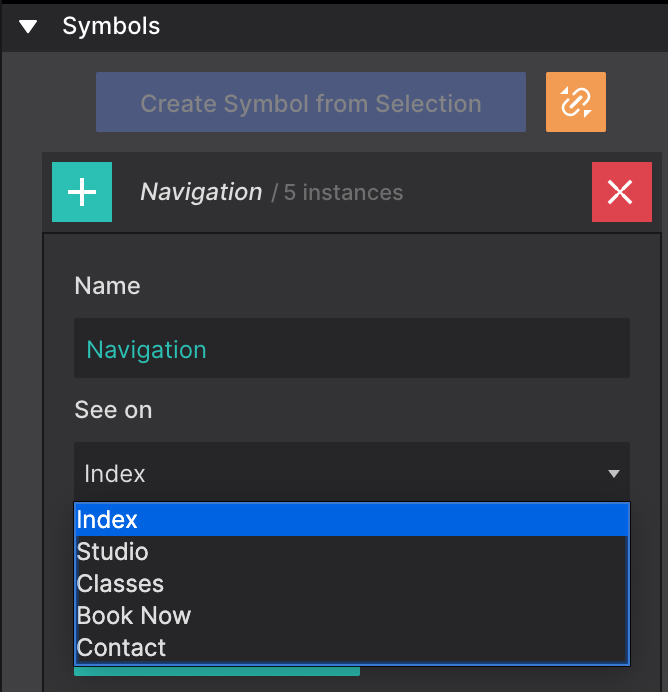
Every Symbol instance on the canvas shows a small badge in its top corner. Read it as a reminder that you are not looking at a local copy — anything you change here changes the same element on every other page that uses it. The badge is a canvas-only marker and never appears in the exported HTML.
Editing a Symbol
You never have to hunt down “the original” — every instance is the original. Edit whichever one is in front of you:
- Double-click any Symbol instance on the canvas to enter Symbol editing mode.
- A blue border confirms you are editing the shared definition, not a one-off copy.
- Make your changes — add, remove, or restyle any element inside.
- Click Done or press Esc to exit Symbol editing mode.
When you exit editing mode, Site Designer pushes the change out to every instance of that Symbol on every page of the project — no need to open those pages or repeat the edit.
Detaching an instance
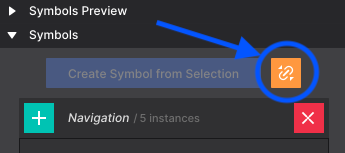
Detaching breaks one instance’s link to the shared definition, turning it back into ordinary page content you can customize freely:
- Right-click the Symbol instance on the canvas.
- Choose Detach from Symbol.
The element keeps exactly the appearance it had, but it is now a regular HTML block: future edits to the Symbol will no longer reach it, and editing it will no longer reach the other pages. The Symbol itself and all its remaining instances are untouched.
Deleting a Symbol
Deleting a Symbol removes the definition from the library, so nothing is shared any more. Existing instances are not erased from your pages — each one is converted to regular, independent HTML that keeps its current appearance but is no longer linked to anything. To delete, right-click the Symbol in the Components panel and choose Delete Symbol.