Media Elements
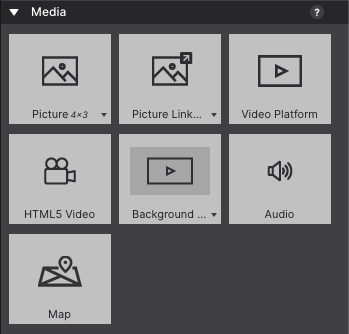
The Video and Audio elements let you embed responsive media directly in the page — responsive because, unlike most other video embeds, they automatically adjust to different screen widths.
Background videos
Two options add background video to the canvas: the Background Video Container and the Full Screen Background Video. Both are made up of two nested elements — a Container and an HTML5 Video element. Since the Video element is nested inside the Container, use the context menu when hovering on the canvas to select it directly.
- Background Video Container — adds a video background to a section of the page. Resize the parent Container to whatever height and width you need.
- Full Screen Background Video — covers the entire viewport (canvas) with video.

When one of these elements is added to the canvas, a media placeholder appears until a real source is set.
HTML5 Video
On the Element pane → Selected Element Properties, configure the video source and an optional poster image. The element supports MP4, M4V, WEBM, OGG, QuickTime, and MOV file types.
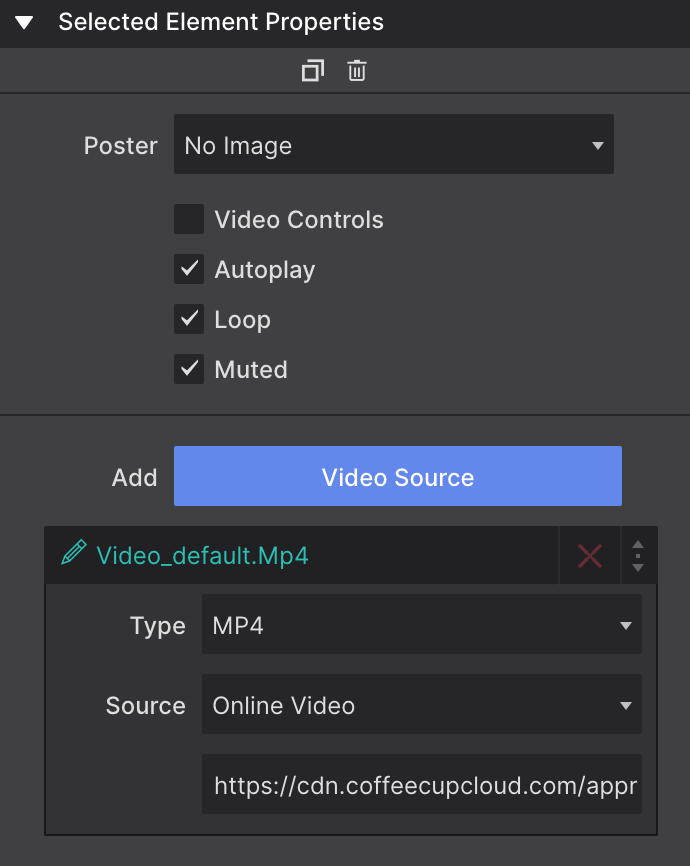
Click the red × next to a source file to remove it, or click Add Video Source to add a new one. Available controls:
| Control | What it does |
|---|---|
| Poster | A cover image shown before the video plays |
| Video Controls | Show or hide the play/pause controls on export or preview |
| Autoplay | Starts the video as soon as the page loads |
| Loop | Restarts the video automatically once it finishes |
| Muted | Plays the video with no sound |
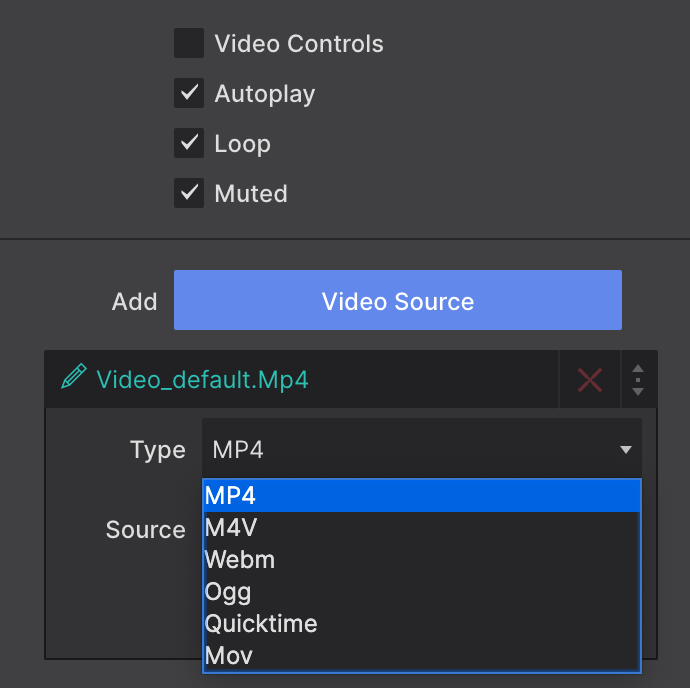
With the HTML5 Video element, load MP4, M4V, OGV, OGM, WAV, M4A, WEBM, OGG, and MOV files — either locally or from an online link.
Audio
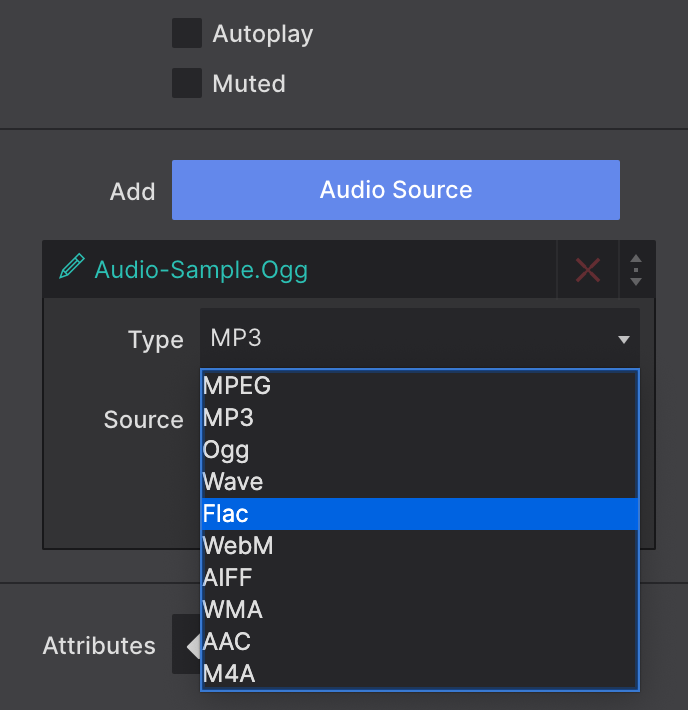
The Audio element plays MPEG, OGG, WAVE, and FLAC tracks.
Map element
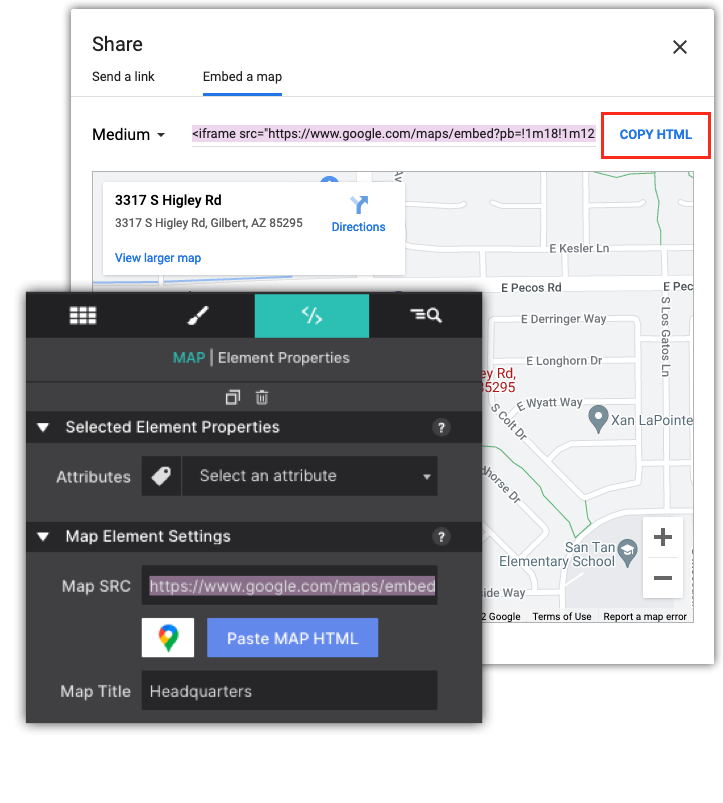
The Map element embeds a responsive Google Map. Copy the Google Map embed code for your destination and paste it into the Map SRC box on the Element pane.