
Elements Overview
Every piece of content on your page is an element. Elements in Site Designer map directly to HTML tags — what you see on the canvas is exactly what gets exported. This article gives you a complete overview of the element system so you know where to find what you need.
How elements map to HTML
When you drag an element onto the canvas, Site Designer creates real HTML. A Heading 1 element becomes an <h1> tag. A Paragraph element becomes a <p> tag. A Grid element becomes a <div> with display: grid. There is no translation layer — the canvas IS the markup.
This means decisions you make in the editor have direct accessibility and SEO consequences. Use the right element for the right job: <h1> for the page title, <nav> for navigation, <article> for standalone content, and <button> for actions. Do not style a <div> to look like a heading if it should actually be a heading.
The Content pane → Elements
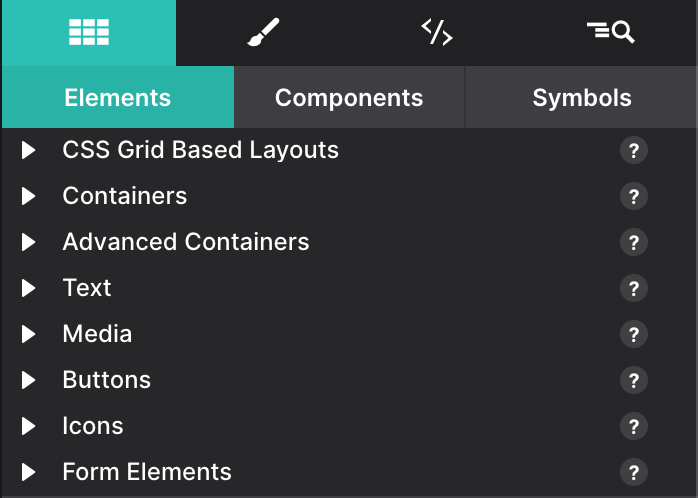
Open the Content pane’s Elements subpanel by clicking the Elements icon in the left toolbar (looks like angle brackets < >). The panel organizes all insertable elements into five categories. You can also right-click any area on the canvas and choose Insert Element to get a contextual insert menu.
The element categories
Text
All elements that contain or format written content:
- Headings (H1–H6)
- Paragraph
- Span (inline wrapper)
- Link (anchor)
- Blockquote
- Lists (ordered and unordered)
Full details: Text elements.
Media
Elements for visual and multimedia content:
- Image (
<img>) - Picture (
<picture>for responsive images and format switching) - Video (HTML5
<video>, plus background video and Video Platform for YouTube/Vimeo) - Audio (
<audio>) - Map (embedded Google Map)
Full details: Image elements and Media elements.
Icons
Small graphic and social elements:
- Font Icon
- Font Icon Link
- Social Icon
Full details: Icon elements.
Structure
Semantic landmark and grouping elements:
- Section (
<section>) - Article (
<article>) - Aside (
<aside>) - Header (
<header>) - Footer (
<footer>) - Navigation (
<nav>) - Container (
<div>— general-purpose grouping) - Divider (
<hr>) - Button
Full details: Common elements.
Interactive
Elements that respond to user input:
- Form (and all form controls: input, textarea, select, label, checkbox, radio)
- Tabs
- Accordion
- Slider / Carousel
- Modal / Lightbox
Full details: Interactive elements.
Layout
Container elements that define spatial arrangement:
- Grid container (CSS Grid)
- Flex container (CSS Flexbox)
- Columns (CSS multi-column)
Full details: Layout elements.
Inserting elements: drag vs. right-click
Drag from the panel: Click and hold any element in the panel, then drag it onto the canvas. A blue drop indicator shows where the element will land. This method lets you choose the exact position in the DOM hierarchy.
Right-click on canvas: Right-click any element on the canvas and choose Insert Element → Before, Insert Element → After, or Insert Element → Inside (for container elements). This method inserts the new element relative to an existing one.
Double-click in panel: Double-click any element in the Content pane’s Elements subpanel to append it to the end of the currently selected container.
Every element creates semantic HTML
Site Designer never generates empty <div> wrappers just to satisfy layout needs. Every element in the catalog has a semantic reason to exist. This approach means your exported HTML works correctly with:
- Screen readers and assistive technology
- Search engine crawlers
- Browser reader modes
- Print stylesheets
Nesting rules
Some elements can contain others; some cannot. The rules follow standard HTML:
- Block elements (Section, Container, Article) can contain both block and inline elements.
- Inline elements (Span, Link) can only contain other inline elements or text.
- Interactive elements (Button, input) cannot be nested inside other interactive elements.
- Layout elements (Grid, Flex) can contain any block elements as direct children.
Site Designer enforces these rules and will warn you if you attempt an invalid nesting (for example, dropping a <p> directly inside a <span>).