
Elements Tree
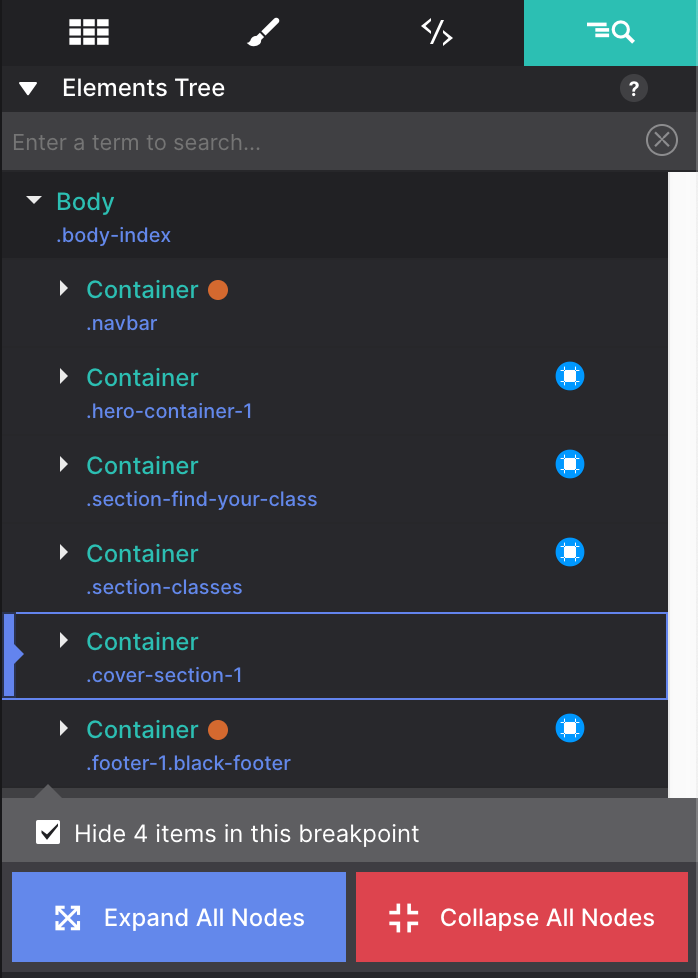
The Inspector pane is very similar to the web inspectors in browsers such as Chrome and Firefox. It shows the DOM tree: a list of the page elements and their nesting.
Hovering and selecting
Mousing over an element highlights it and shows its selector and dimensions on the canvas. The element itself is highlighted in blue/grey, and margins are displayed as a rose-coloured area.
When you select an element, the canvas scrolls automatically to its position. Double-clicking the element brings up the Styles pane for it.
Moving elements
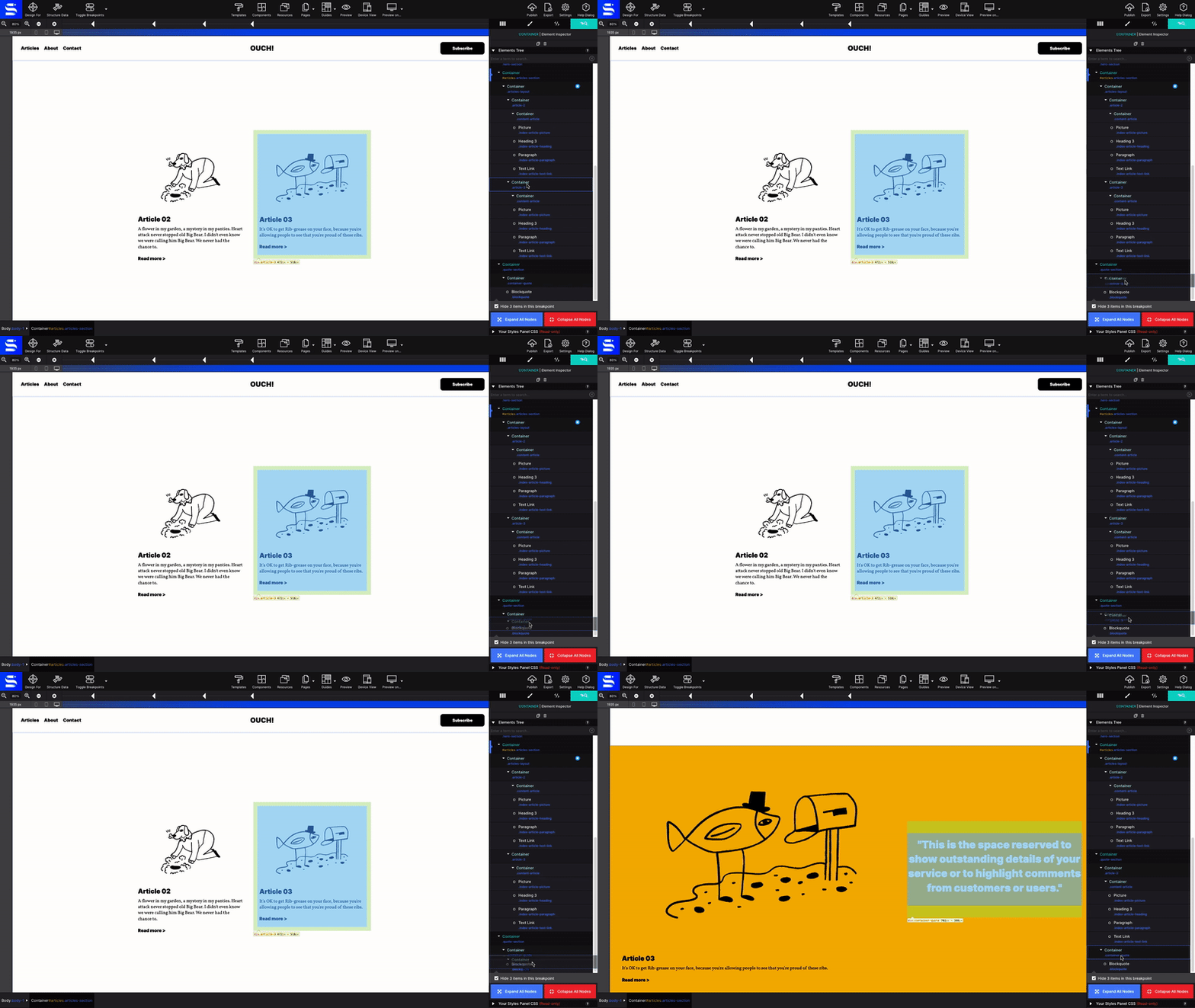
To move an element or element group, click and drag. While dragging, a grey indicator bar shows where the element will be placed when dropped.
All the duplicate, copy and paste functions work when an element is selected in the tree. ⌘C / Ctrl+C copies it; select the element where you want it and ⌘V / Ctrl+V pastes — or use the right-click menu.
Collapsing groups
Element groups — containers and link containers — can be collapsed by clicking the arrow to the left of the element title. You can also Collapse or Expand all nodes at once.
Search
Locate a class or element fast by typing the term into the search. The app brings up every matching item and highlights them on the canvas.
Showing hidden elements
Elements or element groups aren’t always visible to the visitor, and so aren’t always visible on the canvas either — mobile menus that slide into view, accordions where only one container shows at a time, modal dialogs, dropdowns.
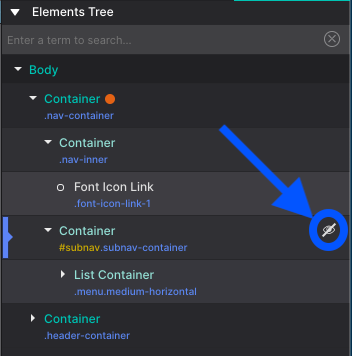
A strike through the eye icon next to an element in the tree indicates it’s hidden on the canvas at the current breakpoint or state.
To show a hidden element so it can be styled, click the icon. It changes to an eye, and the app overrides the styles that hide the item. You can do the same for every element on a page with the Show x hidden item toggle at the bottom of the pane.
CSS preview
The bottom half of the pane shows the CSS applied to the selected element, at all breakpoints. See the CSS preview pane.