
Color coding recap
We already saw that pink is associated with style definitions for an element type and that a blue indicator tells us the style was set on a class. An orange indicator would correspond with a style coming from an ID.
Workflow indicators are located throughout the Style pane to help you identify which controls have CSS selectors applied to them.
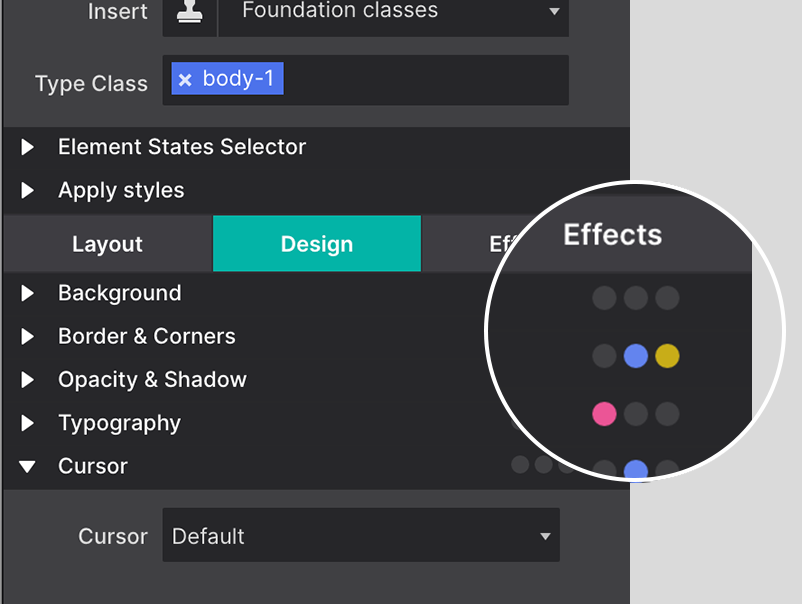
The main three selectors (Type, Class, and ID) covers most of the situations, but there are a few additional cases we need to iron out. First of all, we learned that classes can be deselected so style can be assigned to specific individual classes or class combinations. When a style applies to such a deselected class (or class combination), the style control has a gray indicator.
Selector color coding
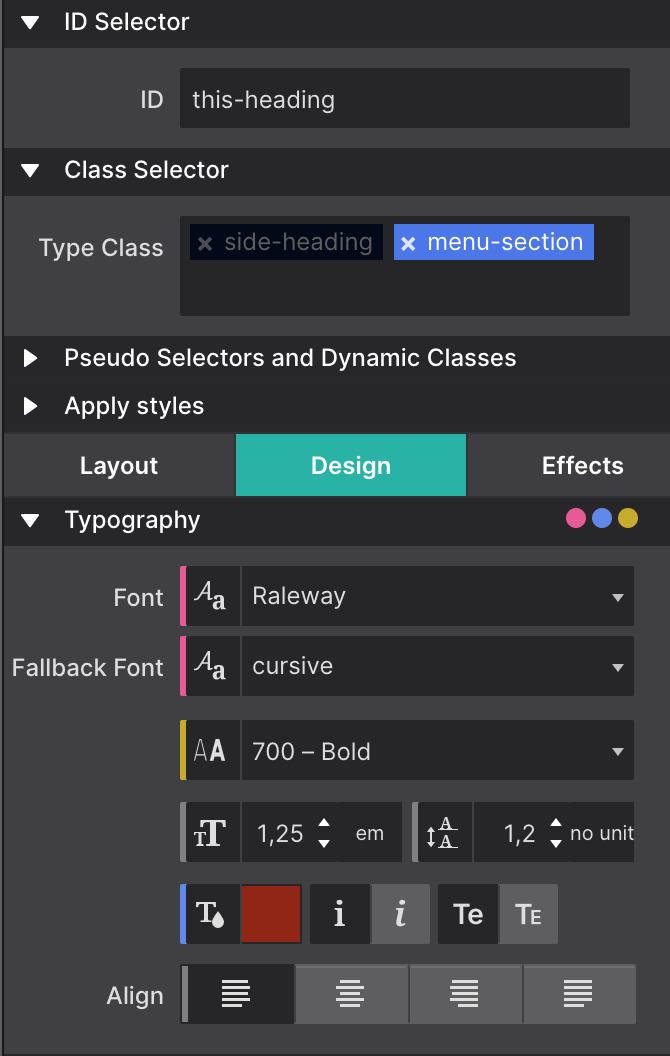
In the image, the class side-heading is deselected. On the Typography section the indicators for the font-size, line-height and text-align controls are gray. This means that these styles belong to the side-heading class.
Here’s one more situation where the color coding can come in really handy. When styles are applied to multiple selectors, e.g. a class and an ID, the style controls show the values of the styles associated with the selector type we are currently working with. This is the selector — Type, Class or ID — visible in the State dropdown. This sounds more complicated than it is really, a quick example will make that clear.
In the image the font-weight control shows a value of 400 - normal with an orange indicator. However, the Apply To dropdown shows we are currently working with class selectors. That means that the visible value — 400 - normal — belongs to a class. The orange indicator however tells us that a font-weight value has been specified for the ID as well. To view this value simply switch the Apply To dropdown to ID and the value associated with the ID will show up in the control.
The indicator will take the color of the strongest selector, because that is the style value that in the end will be visible in the browser. So in our case, if a different font-weight has been set for the ID that is what will show on the canvas.
Selectors and selector specificity in CSS can take a little to get used to, but with this color coding system you will be an expert before you know it!